API · SDK · components · app
Build at the layer you need
Platform architecture
Working exampleOne Support Bot implemented at every platform tier
AI/AP is one platform with four progressively higher-level ways to build. Start from the lowest layer where you need control, and keep everything above it optional.
- FoundationAPI
chat.* · userFiles.* - Typed accessTypeScript SDK
@ai-platform/sdk - Composable UXComponents
@ai-platform/app-kit - Complete productApp
/app/<slug>
The dependency direction is deliberate: the SDK calls the API; UX components consume SDK contracts and React bindings; the full app composes those components. You can use the API alone, add the TypeScript SDK, compose UX components, or adopt the complete app and customize only what makes your product distinct.
All layers share the same deployed app model: git configuration is snapshotted into immutable releases, environments choose a release, and authenticated users get private projects, conversations, streaming turns, tool activity, artifacts, and usage state.
Choose a layer
Working exampleSide-by-side tier comparison
| Starting point | You own | The platform provides |
|---|---|---|
| API | Data fetching, state, and every screen | Agent runtime, persistence, access, tools, artifacts, usage |
| TypeScript SDK | Your framework and UX | Typed clients, domain models, auth-aware operations |
| UX components | Composition, surrounding product, visual overrides | Accessible projects, chat, tools, artifacts, composer |
| App | Configuration and optional custom slots or app bundle | Routes, runtime wiring, default UX, deployment and hosting |
The layers are interoperable, not separate products. A team can ship the full app first, replace one screen with components, and later use the SDK for a native or service-specific experience without changing its agent releases or conversation data.
Start with an agent
Copy Setup an app with ai.frde.me/agents.md into an agent. With WorkOS anonymous Agent Registration enabled, it can obtain a scoped credential and submit its own private-alpha request without opening a browser or asking you to sign in. Once an administrator approves that registration, it can create one isolated app with an immutable v1 release deployed to production.
Anonymous credentials receive only the trial_app:create permission. Approval applies to the exact WorkOS registration and organization; it does not approve a human account. Provisioning is idempotent and limited to one trial app per organization and registration, with at most three fresh trial organizations from one network in 24 hours. It cannot connect GitHub, manage domains, invite users, change providers, or use the normal builder APIs.
The response says whether inference is ready. Deployments with a platform-funded trial key can run immediately under a hard spending limit. Otherwise the app is live but chat waits until a user claims the registration, signs in, and enters an Anthropic key directly in AI/AP. Never put passwords, MFA or recovery codes, session cookies, identity assertions, access tokens, or provider keys into an agent conversation.
Private alpha access
Builder access is approval-only during the private alpha. A person can request access from the dashboard. An anonymously registered agent uses POST /api/agent/alpha-access and can inspect the decision with GET /api/agent/alpha-access. Both request types can include a short note about the intended app.
Human approval follows the WorkOS account across organizations. Agent approval is narrower: it applies only to the exact registration and organization shown in the review queue. Platform admins can approve, decline, or later revoke either kind of principal. The API enforces this boundary; it is not only a hidden dashboard control.
People using an already-deployed app do not need builder approval. App access rules, workspace membership, conversations, artifacts, and usage limits continue to apply independently.
API
Working exampleSupport Bot using direct API function references
The application API is the source of truth for every higher layer. It is an authenticated Convex API: queries are readable and subscribable, mutations make transactional state changes, and actions run long-lived agent work. Calls use the signed-in user's WorkOS access token and preserve workspace, app-access, user, and usage boundaries server-side. Builder operations also require an approved private-alpha account.
| Operation | Kind | Purpose |
|---|---|---|
chat.getAppContext | Query | Resolve an app, environment, release, theme, access, and usage. |
chat.listConversations | Query | List the current user's environment-scoped conversations. |
chat.createConversation | Mutation | Create a conversation on the deployed release. |
userProjects.listProjects | Query | List the current user's app-scoped projects and generated artifacts. |
userProjects.createProject | Mutation | Create a project with optional shared instructions. |
userProjects.linkConversation | Mutation | Give a conversation a home project or add another project link. |
chat.listMessages | Query | Read or subscribe to message, thinking, tool, and artifact parts. |
chatNode.send | Action | Send a message and execute the next streamed agent turn. |
userFiles.getArtifactBundleUrl | Query | Resolve an isolated, revision-aware artifact bundle. |
GET/POST /api/agent/alpha-access | HTTP | Request and inspect private-alpha approval for a WorkOS agent registration. |
POST /api/agent/trial-apps | HTTP | Provision one scoped trial app from a WorkOS agent access token. |
Use the raw operation names when building directly on Convex. For a stable resource-oriented interface and domain types, use the SDK. Builder APIs for apps, releases, environments, repositories, providers, domains, and access settings power the dashboard; end-user projects are part of the application API and SDK.
Agent clients discover authentication through /.well-known/oauth-protected-resource and /auth.md. Trial provisioning requires a WorkOS agent subject, an org_id, the trial_app:create scope, and a 1–128 character Idempotency-Key. The exact registration and organization must be approved first. Human access tokens cannot use these agent endpoints, and agent tokens do not gain access to any other builder operation.
TypeScript SDK
Working exampleThe same Support Bot using createPlatformClient
@ai-platform/sdk is the typed application layer over the API. Its core client works in browsers, servers, and TypeScript apps;@ai-platform/sdk/react adds live React query and mutation hooks. Token refresh stays in your auth layer through getAccessToken.
import { createPlatformClient } from '@ai-platform/sdk'

const platform = createPlatformClient({
  deploymentUrl: process.env.AI_PLATFORM_URL!,
  getAccessToken: () => auth.getAccessToken(),
})

const app = await platform.apps.get({
  slug: 'support-bot-b4uq5',
  environment: 'production',
})
const projectId = await platform.projects.create({
  environmentId: app.environmentId,
  name: 'Order investigation',
  instructions: 'Keep findings concise and cite order events.',
})
const conversationId = await platform.conversations.create({
  environmentId: app.environmentId,
  title: 'Investigate order 1042',
  homeProjectId: projectId,
})

await platform.messages.send({
  conversationId,
  content: 'Why is this order delayed?',
})

const messages = await platform.messages.list({ conversationId })import {
useAppContextQuery,
useMessagesQuery,
useSendMessage,
} from '@ai-platform/sdk/react'SDK results normalize backend identifiers and message parts into exported DeployedApp, UserProject, Conversation, Message, ToolCall, and artifact types. The operation catalog is exported as PLATFORM_OPERATIONS so tooling and documentation can trace every convenience method back to the API operation it invokes.
UX components
Working exampleThe same Support Bot using SDK React bindings and app-kit
@ai-platform/app-kit is the composable React UX layer. Components depend on SDK domain contracts through KitRuntimeProvider; they never import backend functions. This keeps the same components usable with the SDK's live React bindings, the core client, mocks, or a custom transport adapter.
The chat primitives follow the composable patterns from AI SDK Elements, adapted to the platform runtime and theme tokens. Use the stable app-kit components for the complete experience, or the Elements* exports when you need lower-level control over conversation scrolling, messages, reasoning, and prompt input.
import {
  AppHeader,
  Composer,
  ConversationSidebar,
  MessageList,
} from '@ai-platform/app-kit'

export function SupportWorkspace() {
  return (
    <div className="support-workspace">
      <AppHeader />
      <ConversationSidebar />
      <main>
        <MessageList />
        <Composer />
      </main>
    </div>
  )
}
Component to API traceability
| Component or hook | SDK capability | API used |
|---|---|---|
AppHeader, useAppContext | App context | chat.getAppContext |
ConversationSidebar, useProjects, useConversations | Group, link, select, create | userProjects.*, chat.listConversations, chat.createConversation |
MessageList, MessageBubble | Live messages and parts | chat.listMessages |
Composer, useSendMessage | Create-if-needed, send, usage guard | chat.createConversation, chatNode.send, chat.getAppContext |
ArtifactPart, ArtifactFrame | Revision-aware artifact URL | userFiles.getArtifactBundleUrl |
ChatApp | Composition of all capabilities above | All application operations above |
Components ship complete loading, empty, streaming, disabled, error, keyboard-focus, and usage-limit states. Styling uses app theme tokens, so composition does not require copying platform CSS behavior into business logic.
Full app
Working exampleRelease-pinned custom app entry
The hosted app is the highest-level tier. Routes, authentication, live SDK bindings, runtime assembly, default components, custom app loading, artifact isolation, themes, and environment-aware URLs are wired for you at /app/<slug> and /app/<slug>/<environment>.
Start with the default ChatApp. Add slots for small UX changes, compose app-kit primitives for a different layout, or ship a complete app.tsx bundle. All three paths retain the same SDK runtime and API behavior, so customization cannot silently fork conversation, streaming, usage, or artifact semantics.
Continue with the full-app quickstart, then see chat, artifacts, and custom app UI for the complete customization contract.
Full-app quickstart
Working exampleComplete project to fork
For a fresh workspace, or a single app you have not deployed yet, the dashboard opens a calm, resumable guided setup instead of the status board. It derives each step from saved state, so you can close the tab and pick up where you left off. The steps are:
- Sign in. A default workspace is created the first time you visit.
- Name your app and pick a starting point — Blank, Support, or Knowledge base. The starter seeds the instructions; the slug and a production environment are created automatically.
- Review the instructions (system prompt). Model and effort live under Advanced, defaulting to
claude-sonnet-5. - If your workspace has no Anthropic key yet, add one. It must start with
sk-ant-and is validated with Anthropic before storage. This step is skipped when a key is already saved. - Confirm
Publish v1. A single confirmed action snapshots release v1 and deploys it to production for your workspace. - Open the app and try it. From success you can also customize access or connect GitHub.
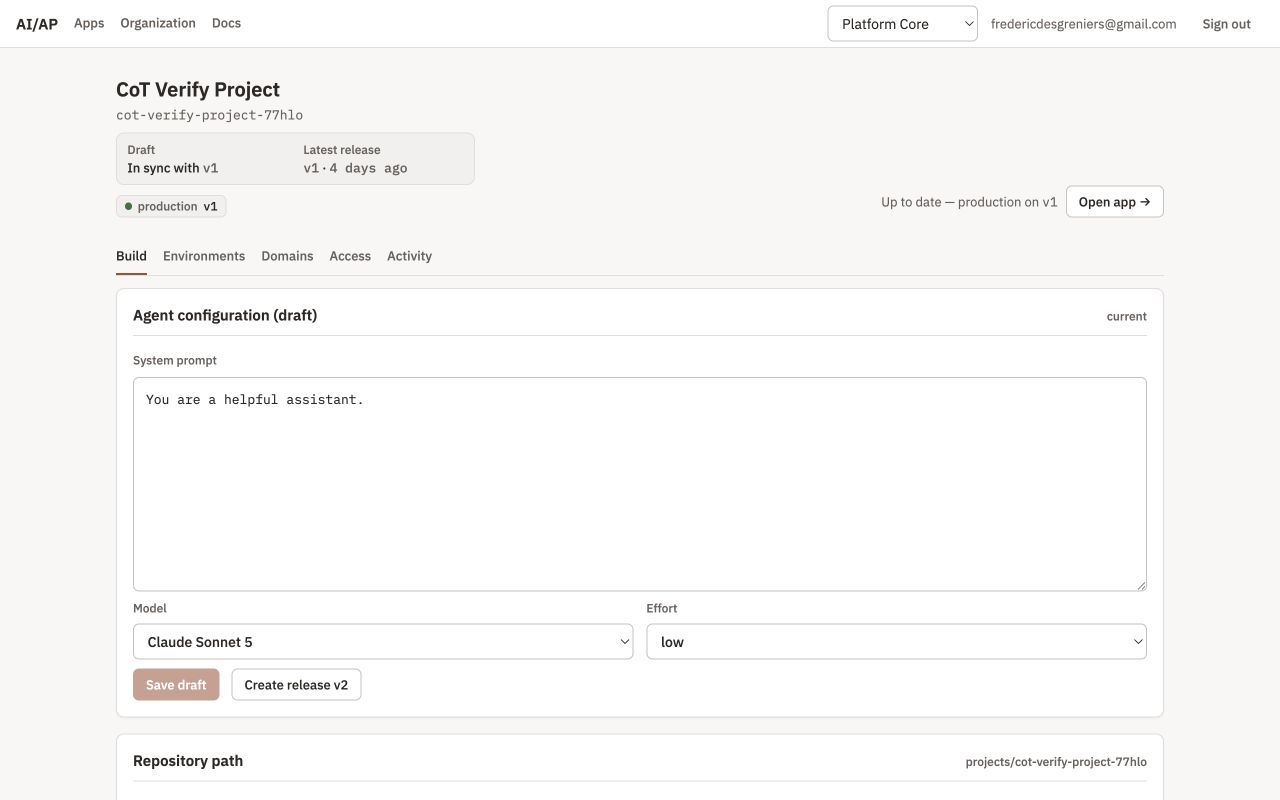
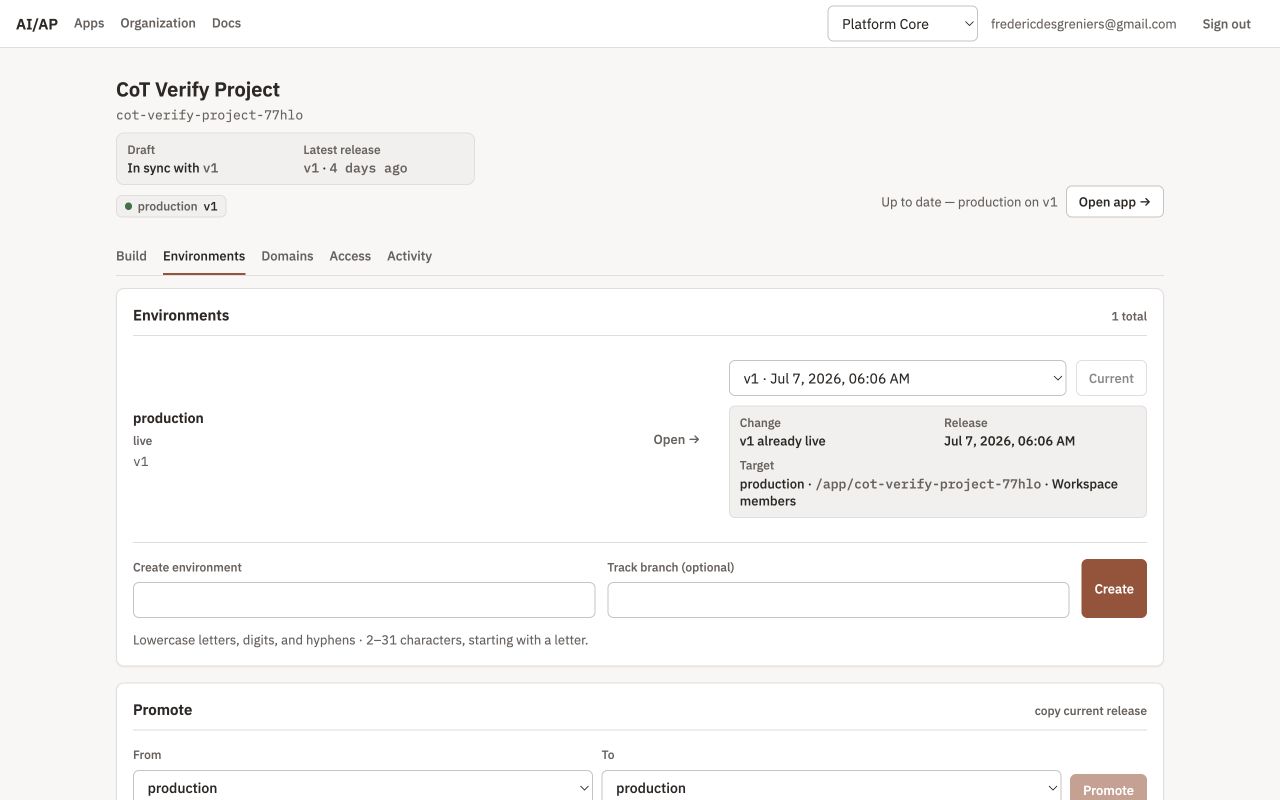
After the first app is live, the dashboard shows the normal status board. Without a connected repository, later changes use the Build and Environments tabs: edit the draft, Create release vN, then deploy it to an environment. Once a repository is connected, the dashboard draft is removed and configuration changes must be made in git.
Prefer starting from a complete repository? Browse or fork the public AI/AP example configuration.
Projects & agent configuration
Working exampleAgent instructions with config and theme beside them
Each project starts with a dashboard draft. The draft fields are the system prompt, model, and effort. The system prompt is limited to 8000 characters, and Cmd/Ctrl + Enter saves from the editor.
| Field | Values | Default |
|---|---|---|
| Model | claude-sonnet-5, claude-haiku-4-5, claude-opus-4-8 | claude-sonnet-5 |
| Effort | low, medium, high | low |
The draft is a scratchpad. Nothing reaches users until the draft or a git ref is snapshotted into a release and deployed to an environment.
When a repository is connected, a project reads from a directory under projects/. The default directory is the project slug. A custom repository path must match ^[a-z][a-z0-9-]{0,40}$. The dashboard draft editor is available only before a repository is connected. After connection, edit the project files in git and create releases from a branch, tag, or commit.
Git as source of truth
Working exampleCanonical Git-backed repository layout
Connect a repository once per organization in Organization → Repository. The GitHub App path is recommended, is required for the agent's git tools, and manages webhooks automatically. A fine-grained personal access token can also be used with read-only Contents and Metadata access; the token is stored encrypted, only the last four characters are shown, and webhook setup is optional.
Sync is one-directional from git to the platform. When a release is cut from git, files in the repository are the project configuration. Put project files under projects/<repoPath>/. Disconnecting the organization repository makes the dashboard draft editor available again.
The complete public example project includes every supported project file in one working directory.
# Support Bot

You are the support agent for Acme. Answer questions about the Acme platform concisely and accurately.

- Be direct and friendly.
- If you don't know, say so.
- Never invent product features.{
"model": "claude-sonnet-5",
"effort": "low"
}{
"name": "Verifier brand",
"accent": "#0EA5E9",
"background": "#F8FAFC",
"surface": "#FFFFFF",
"text": "#0F172A",
"textMuted": "#64748B",
"radius": "10px"
}theme.json accepts only accent, background, surface, text, textMuted, fontDisplay, fontMono, radius, and name. Unknown keys are rejected.
Release validation checks color contrast: body text and muted text must be readable against the background, and the accent must be visible, or the release fails with a clear message. The platform automatically chooses a readable text color for content shown on your accent.
tools.json is optional and grants agent tools; see Agent tools & background jobs. Git releases may also snapshot repository-defined skills and TypeScript tools; see Plugins, skills & tools. app.tsx is optional custom app UI compiled and bundled at release time, with sibling relative imports followed; see The chat app. artifact-contract.tsx is an optional, separately compiled public module for artifact components and browser-side functions.
Webhooks build and deploy from connected git activity. A push to a tracked branch builds a release and auto-deploys it to that environment. A pull request open or update builds a release for each affected project and creates a pr-<N> preview environment. The platform writes a status comment on the pull request, updates it in place, and archives the preview on close.
Releases
Working exampleIntegrity workflow for release inputs
A release is an immutable snapshot of config, theme, enabled plugins, skills, compiled tools, an optional compiled custom app, and its optional artifact contract. Versions are per-project integers that start at 1 and are never reused.
There are two creation paths. Create release vN snapshots the dashboard draft only, so it does not include theme, tools, or a custom app. Release-from-ref and webhook builds read from git, recordcommitSha and sourceRef, link the short SHA to GitHub, and badge releases that include a custom app bundle.
Environments, deploys & promotion
Working exampleRepository workflow exercised by previews
Production exists by default and cannot be renamed. Custom environment names must match ^[a-z][a-z0-9-]{1,30}$ and can optionally track a branch. Pushes to a tracked branch build and auto-deploy a release to that environment.
Pull request previews use pr-<N> environment names and are created and archived by pull request webhooks. To deploy manually, pick a release and deploy it to an environment. Production deploys require an armed confirmation.
Promotion copies the current release from one environment to another. Promotion to production also requires confirmation. The Activity tab records release creation, deploy, and promotion events.
The chat app
Working exampleCustom chat app built on ChatApp
Members open production at /app/<slug> and a specific environment at /app/<slug>/<env>. Each signed-in member gets private projects and conversations. The sidebar shows projects first; expand one to see its linked chats and generated artifacts. Chats linked to a project appear only inside that project, while the Chats section contains unlinked work.
A project can include optional instructions that are applied to every home chat in that project. Start a chat from a project to assign it immediately, drag an unlinked chat onto a project, or add the current chat with the project picker on touch and keyboard interfaces. A chat may be linked to several projects, but its home project controls shared instructions and receives newly generated artifacts.
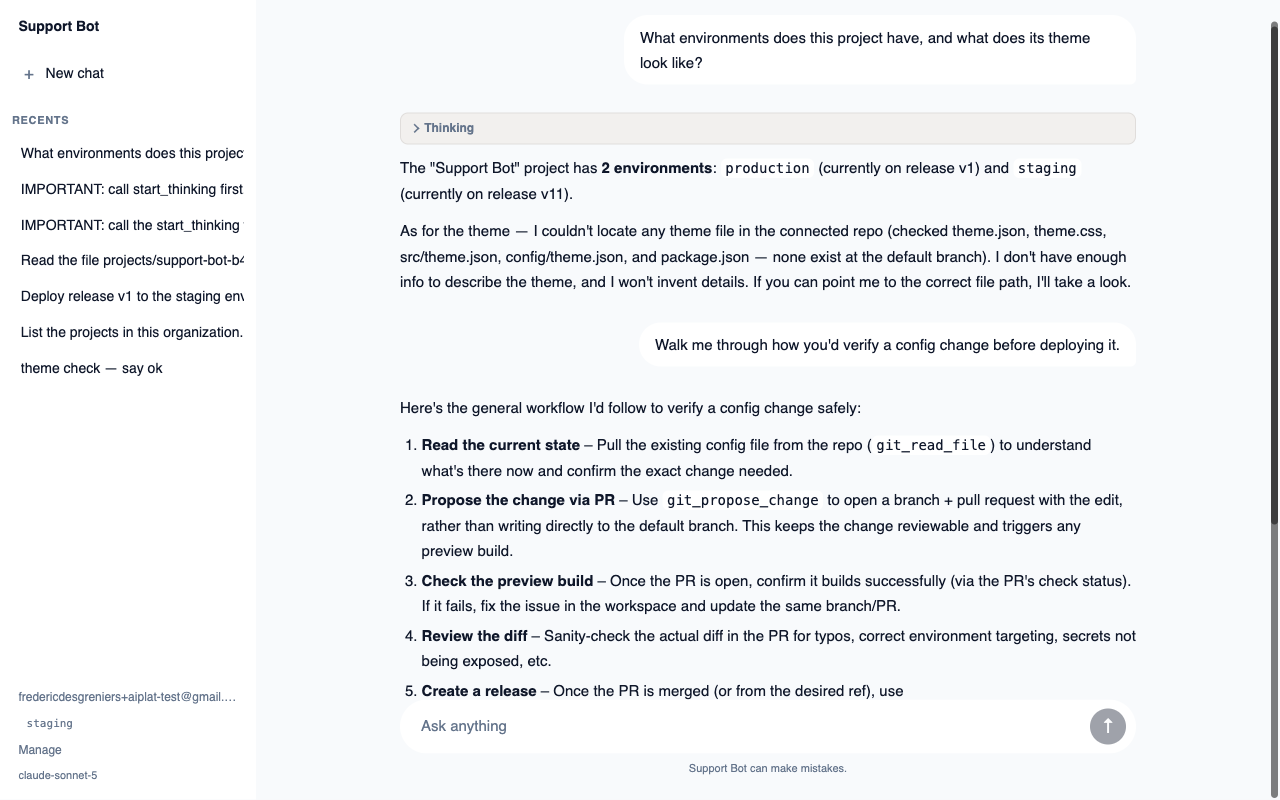
Sent messages and the assistant's typing indicator appear in the conversation immediately while the platform accepts the message and starts the agent turn in the background. The default app streams assistant responses, shows concise collapsible Work summaries, and renders tool-call cards with live status, duration, and expandable request and result detail. Interrupted generations are reaped with a note so the conversation can continue. Long code blocks scroll within the message instead of widening the conversation. A scroll-to-latest control appears when you review earlier messages. The compact composer stays one line until the message needs more room, then grows with the draft. Chat requires the organization's Anthropic key.
Artifact revisions
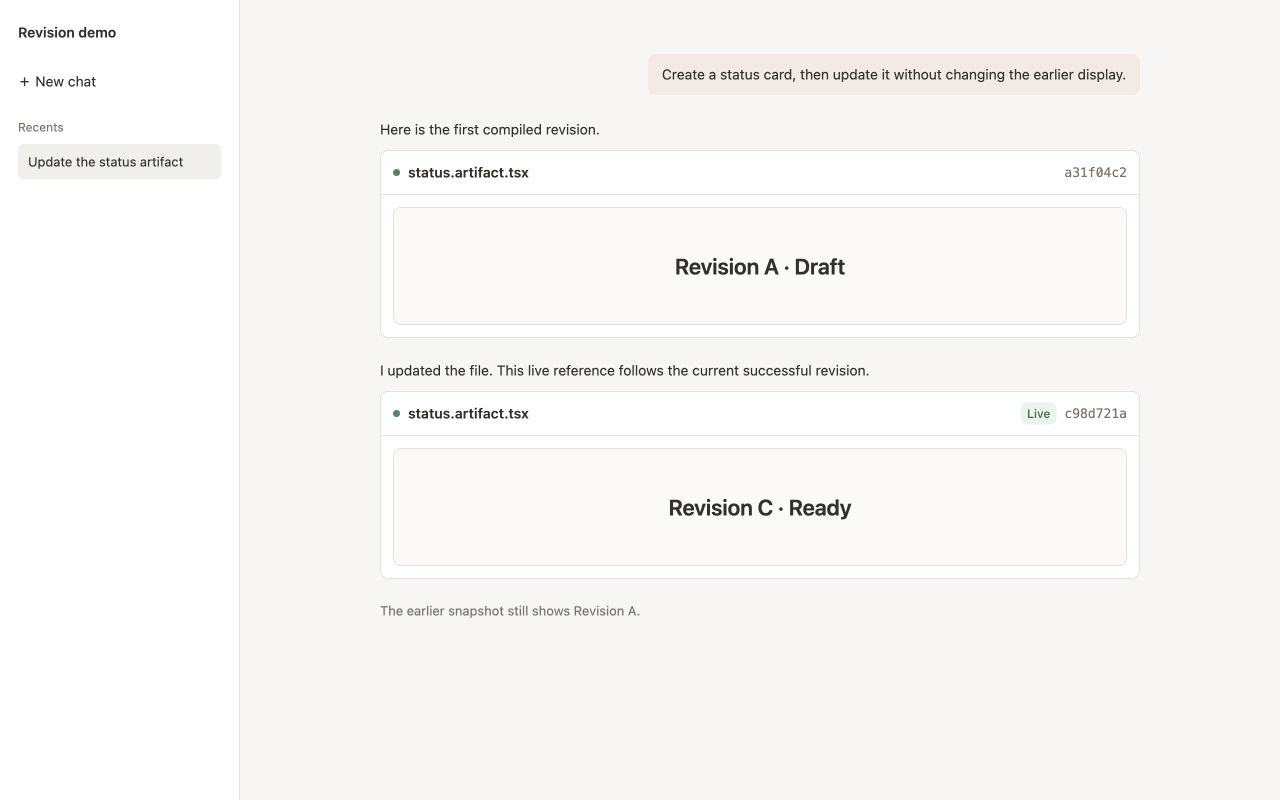
Artifact displays are immutable snapshots by default. After the agent updates an artifact file, it must display the path again to add the new revision; earlier messages continue rendering the exact bundle they originally showed.
<!-- Snapshot the current revision -->
<artifact path="reports/chart.artifact.tsx" />

<!-- Follow successful revisions of this path -->
<artifact path="reports/chart.artifact.tsx" rev="latest" />
Live references are explicitly labeled Live and update after each successful compilation. A failed compilation does not replace the last successful revision. Deleting the source makes a live reference unavailable, while snapshots in conversation history remain renderable.
App artifact contracts
Add artifact-contract.tsx beside the project files to publish app-owned components and browser-side functions to artifacts. Every named export becomes available from @ai-platform/artifact-contract. The contract accepts React plus sibling .ts and .tsx imports and is typechecked when the release is built. A contract may contain up to 50 source files and 400 KB of source.
export function Metric({ label, value }: { label: string; value: number }) {
  return (
    <figure>
      <figcaption>{label}</figcaption>
      <strong>{value.toLocaleString()}</strong>
    </figure>
  )
}

export async function loadPublicStatus(id: string): Promise<{ state: string }> {
  const response = await fetch(`https://status.example.com/items/${id}`)
  if (!response.ok) throw new Error(`Status request failed: ${response.status}`)
  return response.json()
}import { useEffect, useState } from 'react'
import { Metric, loadPublicStatus } from '@ai-platform/artifact-contract'
export default function StatusArtifact() {
const [state, setState] = useState('loading')
useEffect(() => {
void loadPublicStatus('order-123').then((result) => setState(result.state))
}, [])
return <Metric label="Order status" value={state.length} />
}Artifact writes are typechecked against the exact contract snapshot before bundling. Diagnostics are returned to the agent through fs_write, so it can repair invalid props, function arguments, imports, and return-value usage before displaying the artifact. The successful artifact bundle includes its contract code, keeping old revisions independent of later releases.
Artifacts execute only in the separate artifact-shell service inside a cross-origin iframe with sandbox="allow-scripts". The web app transfers the compiled bundle through a nonce-scoped message handshake but never executes it. The shell has no main-app cookies, storage, DOM access, or app-kit runtime. Contract functions therefore run in the isolated browser and may call only endpoints that explicitly allow their requests; never place secrets in artifact contract source.
Custom app UI
Add app.tsx beside the project files to ship a custom app. The release compiler accepts react, react/jsx-runtime, react-dom, @ai-platform/app-kit, and sibling relative .ts or .tsx imports. The bundle limit is 400 KB.
defineApp returns an app definition with an App component. The app kit exports ChatApp, AppHeader, Composer, ConversationSidebar, MessageList, MessageBubble, and hooks for runtime data such as useAppContext, useConversations, useMessages, and useSendMessage.
import { defineApp, ChatApp, useAppContext } from '@ai-platform/app-kit'

function Header() {
  const ctx = useAppContext()
  return <div className="custom-banner">Custom UX for {ctx.projectName} — powered by app-kit</div>
}

export default defineApp({ App: () => <ChatApp header={<Header />} /> })Plugins, skills & tools
Working exampleComplete math plugin
A plugin groups agent instructions and executable tools under projects/<project>/plugins/<name>. Plugins are enabled explicitly in tools.json; merely adding a directory does not change an agent release.
See the working math plugin on GitHub for the manifest, Markdown skill, TypeScript tool, and project-level enablement together.
{
  "plugins": ["math"]
}{
"manifestVersion": 1,
"name": "math",
"description": "Release-pinned arithmetic instructions and tools",
"skills": ["skills/add-numbers.md"],
"tools": ["tools/add.ts"]
}Manifests list every file explicitly. Unlisted files are ignored, and missing, duplicate, escaping, or unsupported paths fail release validation. A project may enable up to 10 plugins; each plugin may contain up to 25 skills and 20 tools.
---
name: add-numbers
description: Use when the user asks to add two numbers.
tools:
  - math__add
---

# Add two numbers

Call `math__add` with the two requested numbers. Report the returned total directly.
The agent sees a compact catalog and loads full skill instructions only when needed. Skill content is pinned to the release, so later Git changes cannot alter deployed instructions. Skill files are limited to 24 KB and all skills in one release to 256 KB.
import { defineTool } from '@ai-platform/plugin-sdk'

export default defineTool({
  name: 'add',
  description: 'Add two numbers and return their total.',
  inputSchema: {
    type: 'object',
    properties: {
      left: { type: 'number' },
      right: { type: 'number' },
    },
    required: ['left', 'right'],
    additionalProperties: false,
  },
  async execute(_ctx, input) {
    return { total: input.left + input.right }
  },
})
Tool names are exposed as <plugin>__<tool> to prevent collisions. TypeScript tools may import only @ai-platform/plugin-sdk. They run in a fresh Railway sandbox isolated from the platform private network, without Convex, database, repository-token, secret, or persistent-filesystem access. Each invocation has a 20-second execution limit, 64 MB Node heap, and a 20,000-character result limit.
Plugins are available only on Git-backed releases. Dashboard draft releases intentionally snapshot the draft configuration alone.
Agent tools & background jobs
Working exampleTool grants and plugin enablement
Tools are opt-in per project through tools.json. A release without grants exposes no project tools to the agent. The public example's tools.json combines platform grants with plugin enablement.
| Group | Tools | Notes |
|---|---|---|
| Platform | list_projects, get_project, create_release_from_ref, deploy_to_environment | Deployment is limited to non-production environments; production deploys are rejected server-side. |
| Git | read_file, propose_change, check_pull_request | Requires the GitHub App connection. Reads return up to 50 KB. Proposed changes open a pull request on a new branch, never write to the default branch, and accept 1 to 10 files with up to 100 KB each. |
| Coding | sandbox_bash, validate, propose_from_workspace | Requires the platform sandbox. The sandbox is persistent per conversation with the repo cloned. Bash and pull request checks can run sync or async. |
Long runs return a job_... handle. The agent can await, poll, cancel, or list jobs. Completed jobs wake the conversation so the agent can continue after the user's turn has ended.
A typical self-verification loop is validate, propose, check the pull request's preview build, then re-propose on the same branch if the preview failed.
{
  "platform": {
    "list_projects": true,
    "get_project": true,
    "create_release_from_ref": true,
    "deploy_to_environment": {
      "enabled": true,
      "environments": "non-production"
    }
  },
  "git": {
    "read_file": true,
    "propose_change": true
  },
  "plugins": ["math"],
  "http": []
}App access & consumption
Working exampleDeployed project used for access and usage controls
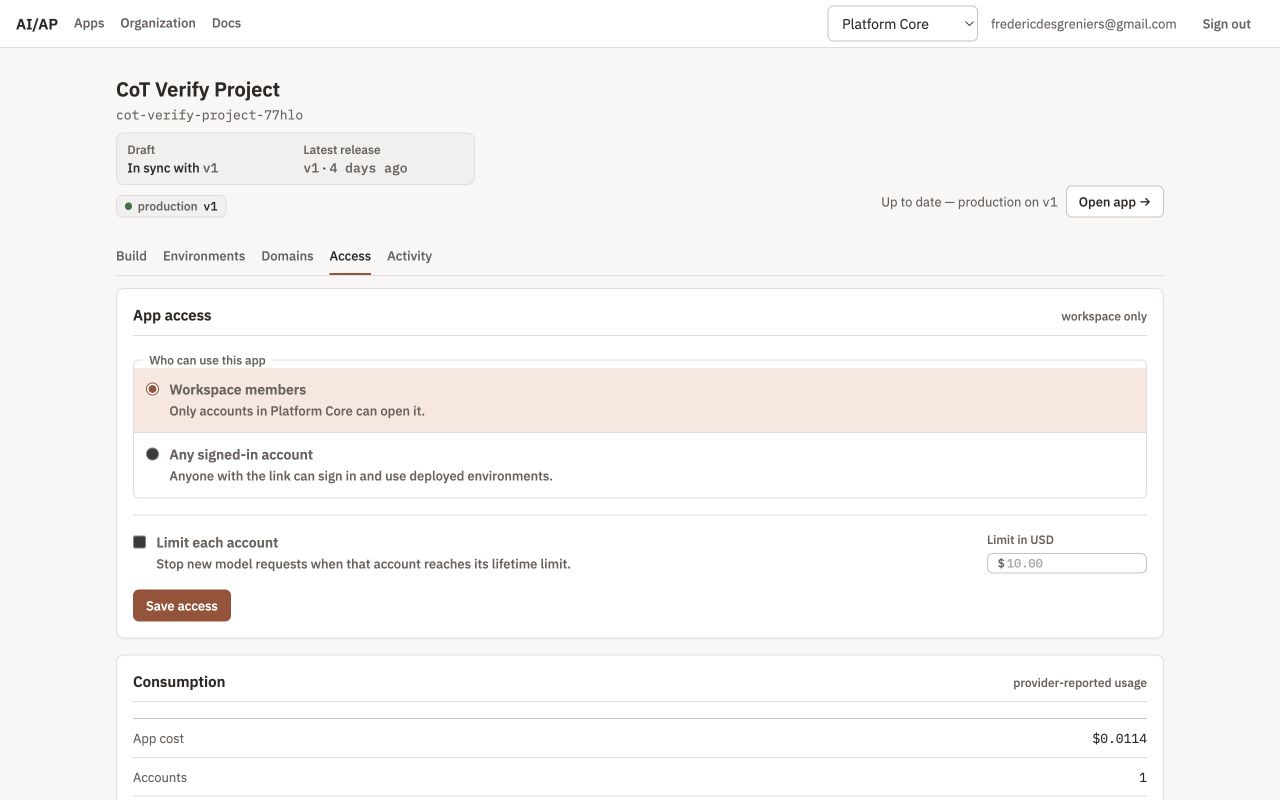
Apps start in Workspace members mode. On an app's Access tab, select Any signed-in account to let anyone with the link use the app. Signed-out visitors first see the app name and an explicit Sign in to continue action, then start WorkOS sign-in and return to the same host. Their conversations and files remain private to their account, and they do not receive dashboard access to the owning workspace.
Enable Limit each account to set a lifetime USD ceiling, such as $10.00. The platform atomically reserves room before each model request, records Anthropic's returned input, output, prompt-cache-write, and prompt-cache-read token counts, then reconciles the reservation to actual cost. New model requests stop when the account no longer has enough budget.
The Access tab's consumption ledger shows total app cost, accounts, model requests, and tokens. In the default chat app, every account sees its own cost in the sidebar, plus its limit when one is set; the composer locks once the recorded limit is reached. Limits and costs are in USD and use the owning workspace's Anthropic key.
API keys & organizations
Working exampleOrganization-owned configuration repository
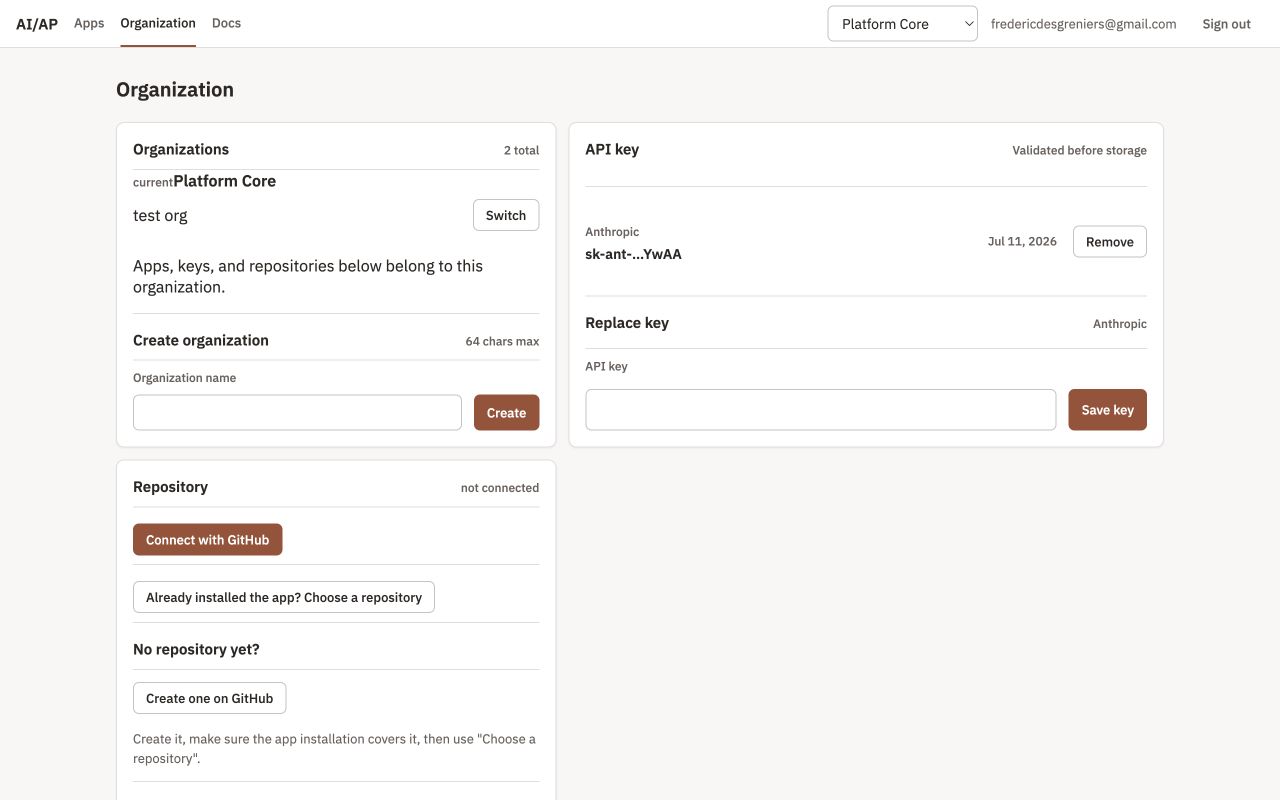
Each organization brings one Anthropic key. Keys must start with sk-ant-, are validated with Anthropic before storage, and are encrypted at rest with AES-256-GCM. The dashboard shows only the last four characters.
Removing the key stops chat for every deployed app in the organization until a new key is saved.
Organizations are backed by WorkOS. Projects, provider keys, and repository connections are scoped to the current organization. Selecting an organization in the dashboard header switches the working organization immediately for every dashboard and app operation while keeping you on the same dashboard page. If that page belongs to an app that is not in the selected organization, the dashboard returns to Apps. You can create organizations in Organization.
Where apps are served
Working exampleApp served from production and preview hosts
Canonical app paths are /app/<slug> for production and /app/<slug>/<env> for a specific environment.
Where subdomain hosting is enabled, each app also gets {label}.<apps-domain>. A specific environment uses {label}--{env}. The label defaults to {orgSlug}-{projectSlug}, and -- is reserved as the environment separator.
Apps are workspace-only by default. A builder can instead allow any signed-in account from the project's Access tab. Public app users can chat but cannot manage the project or access its workspace dashboard.
For apps open to any signed-in account, opening an app domain first shows the app name and a Sign in to continue action. That action starts WorkOS sign-in on the same hostname and returns you there with a secure, host-only session. Moving between the dashboard and a generated app domain may include a brief WorkOS redirect while that domain creates its own session.